The AURA panic button gives you a physical way to call for help through your AURA-powered app. It connects to your phone over Bluetooth, so you can send an alert without unlocking your phone or opening the app.
It is a companion to your app, not a standalone emergency device. Your phone does the work: it must be switched on, within Bluetooth range and running the app in the background.
Carry it on your keys, wear it, keep it in a bag or fix it in one place. For businesses with an AURA white-label app, it adds another way to reach the same control centre and responder network, with no change to your app's backend.
What happens when you call for help
Press and hold the button for 3 seconds.
Your alert reaches the AURA control centre. Your app sends your live location and details, and the nearest responder is dispatched.
A controller calls you. They check what you need and reassure you. If it was a false alarm, tell them, or cancel the alert in the app.
Track your responder. Follow their arrival in the app and chat with the control centre while you wait.
Share feedback. Once the callout is complete, the app invites you to rate your experience.
Before you pair
Bluetooth on. Keep Bluetooth switched on at all times.
Location set to Always. Allow your app to use your location and set it to Always, so your position stays current.
iPhone: keep the app in the background. Do not force-close the app by swiping it away. After restarting your phone, reopen the app and test your button.
Android: keep notifications on. Keep panic button notifications active, so the app can stay connected to your button.
How to pair your button
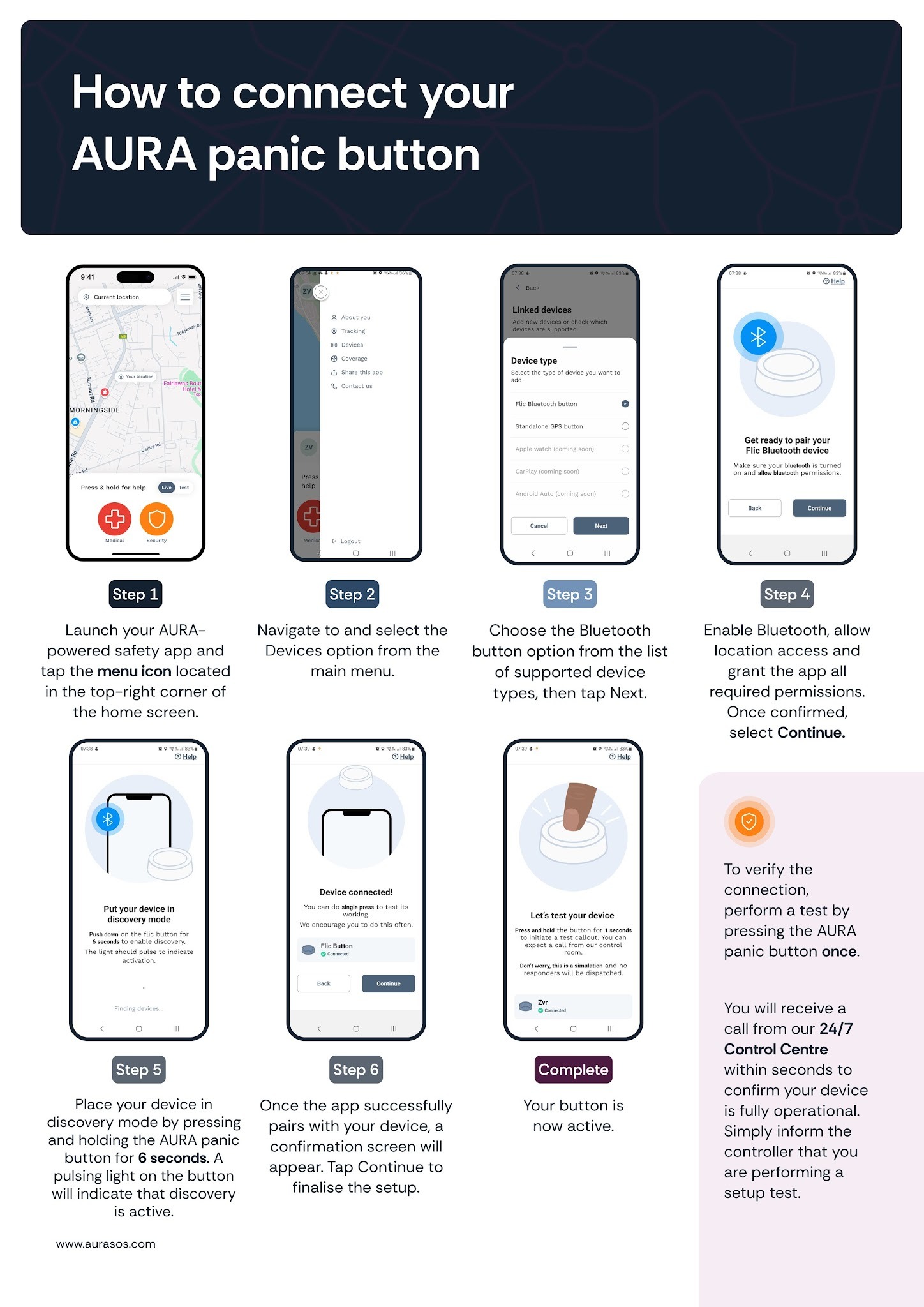
Open the menu. In your AURA-powered app, tap the Menu icon (three horizontal lines) at the top right of the home screen.
Select Devices.
Choose Bluetooth button, then tap Next.
Allow permissions. Turn on Bluetooth, allow location access and grant the app the permissions it asks for. Select Continue.
Put the button in discovery mode. Press and hold the button for 6 seconds, until its light pulses.
Confirm the pairing. When the confirmation screen appears, tap Continue.
Test it. Press and hold the button for 3 seconds. A controller from the AURA 24/7 control centre will call you. Tell them you are testing your setup.
Your button is now active.
Test your button regularly
Run an emergency test now and then. Press and hold for 3 seconds, then cancel the alert in the app straight away, or tell the controller you are testing when they call.
Test where you use it. Range depends on your phone and surroundings, so try the button at home, in the car and anywhere else you carry it.
Do not rely on the lights alone. Regular testing is the only way to know an alert will reach AURA.
What the lights mean
Green: active and connected.
Yellow: trying to connect or reconnect.
Blinking red: out of range or disconnected.
Steady red: the battery is low.
Things to know
The button does not work if your phone is switched off, out of Bluetooth range, or the app has been closed.
It works while your phone is locked or on standby.
Range is up to 50 metres (165 feet) in typical use and up to 200 metres (650 feet) in ideal line of sight. Walls and obstacles reduce it. The button reconnects automatically when you are back in range.
The battery lasts up to 3 years on one replaceable CR2032 coin cell. Check its status by selecting your button in Devices.
The button is weather-resistant and handles light moisture and splashes.
The button works with AURA-powered apps. It is not available for apps that connect to AURA through an API integration.
If your button is not connecting
Check that Bluetooth is on, your phone is within range and location access is set to Always.
Make sure the app is running in the background and, on Android, that panic button notifications are on.
In Devices, check the button shows as paired. If it was paired with another phone, remove it from that phone first. If you have more than one button at home, check you have not swapped them.
Restart your phone and reopen the app.
If it still does not connect, forget the button in the app and in your phone's Bluetooth settings, then pair it again.
If the light stays red, replace the CR2032 battery.
Where can I get one?
From the AURA panic button page on Dress Your Tech. You need an active subscription to an AURA-powered app, either directly or through an eligible AURA partner.